Client Requirements
These requirements apply to all workstations running the ENPS client.
Hardware
|
Component |
Minimum Client Requirements |
Recommended Client Specs |
Notes |
|---|---|---|---|
|
CPU |
Intel Core i3 |
Intel Core i5 or better |
Faster workstations are recommended for optimal plugin usage. |
|
RAM |
8GB - 16GB+ (See Notes) |
16GB - 32GB+ (See Notes) |
While ENPS itself typically uses between 1 and 3 GB of RAM, we strongly recommend a minimum of 16GB of RAM to ensure smooth performance not only for ENPS but also for other applications commonly used alongside it. This configuration helps prevent system slowdowns and ensures an efficient workflow. Users with very light workloads - may operate sufficiently with 8GB of RAM, but this is not generally advised. Power users – particularly those working with video editing, graphics, or multiple plug-ins – 32GB or more may be necessary to maintain optimal performance across all processes and applications on a workstation. |
|
Available Disk Space |
1GB |
1GB |
ENPS needs at least 1GB of free space to be installed and then operate. Additional space may be necessary for integrated products - please consult the appropriate vendors for details. |
|
Network |
100 megabit |
100 megabit or greater |
|
|
Video Display |
1280 x 720 |
1920 x 1080 or better |
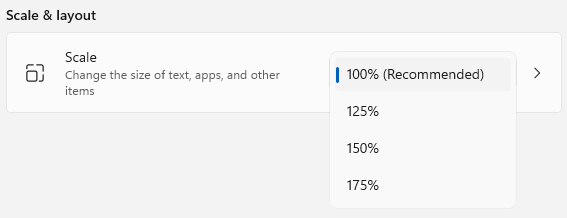
We recommend using ENPS with Windows display scaling set to 100%. Using scaling levels above 100% may cause ENPS performance issues.
|
|
Additional Hardware |
Audio card and speakers |
|
|
Software
All client workstations are expected to run with up-to-date drivers as provided by the hardware vendor. Outdated drivers may cause reduced performance and compatibility issues.
|
Component |
Minimum Client Requirements |
|---|---|
|
Operating System |
10 Professional/Enterprise, 11 Professional/Enterprise editions. Home editions of any Windows operating system are not supported. The operating system must have the latest Windows updates from Microsoft installed. Workstations must have a Server Client Access License and it must be a member of your site's Windows domain. |
|
.NET Framework |
|
|
Browser |
The most current version of Chrome. |
|
Media Player |
VLC Media Player (32-bit versions only). |
Apple Mac
The full ENPS Client application runs on macOS when combined with the following third-party applications:
-
Parallels
-
Fusion
-
Hosted Environments (ex: Remote Desktop, Microsoft RemoteApp, AWS AppStream)
-
VNC
-
Boot Camp
-
Windows on Apple Hardware
In these cases, support is provided for the ENPS Client as it is run within the Microsoft Windows Operating System. Specific technologies required to bring the Windows Operating System and ENPS Client UI to the macOS desktop are provided by third parties. Third-party technologies bring with them specific feature sets. As with Windows System Administrators, System Administrators should be familiar with macOS as well as specific third party applications and features.
A list of recommendations can be provided on how to best configure many of these third party technologies to work with the ENPS Client, but direct support is not provided for third party software.
Any macOS workstation that is to be used to host an ENPS Client should not only meet the minimum specifications of the software being used to host the environment in which the ENPS Client is run, but the resources allocated to that environment should meet or exceed the normal ENPS Client minimum specifications.
Once you have configured a macOS workstation to run ENPS, it is recommended that you change the default function key behavior by adjusting the keyboard setting and enable Use F1, F2, etc. keys as standard function keys to use your ENPS Macros:
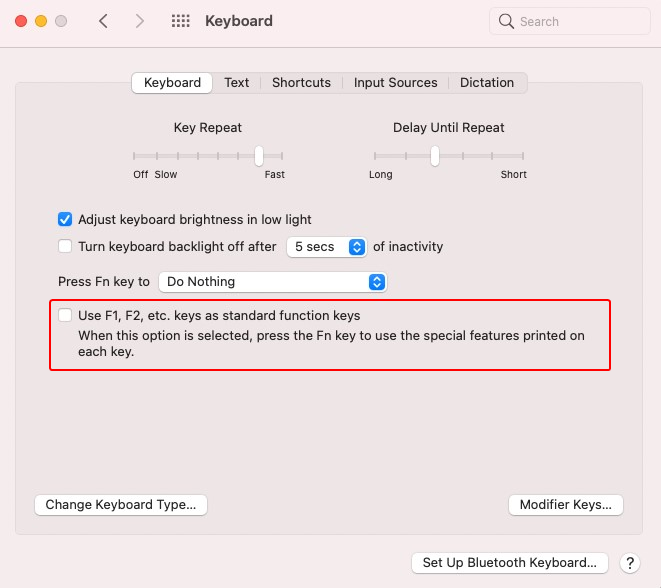
Once this setting is enabled it changes the behavior for all the macOS system function keys at the top of an Apple keyboard. For example, if you are accustomed to using F11 to lower the volume, you will need to press Fn + F11 to lower the volume.
If you choose not to change the default Function key behavior, you can hold the Fn key when pressing an Fx key. For example, pressing Fn + F12 will perform the action assigned to the F12 key, instead of raising the volume.
